
Terminal Mode Without Fear: Tidy a Folder by Chatting
Not installed yet? Start with terminal mode install guide.
The terminal sounds intimidating, but there is really only one thing in front of you: a box you can type into.
In this lesson we use it to turn a messy folder of meeting notes into a clear to-do list.
01 Open it and look at the “black window” once
Section titled “01 Open it and look at the “black window” once”Open it inside the folder you want to work on. The lines around the edges are just frames — there is nothing you need to type as a command.
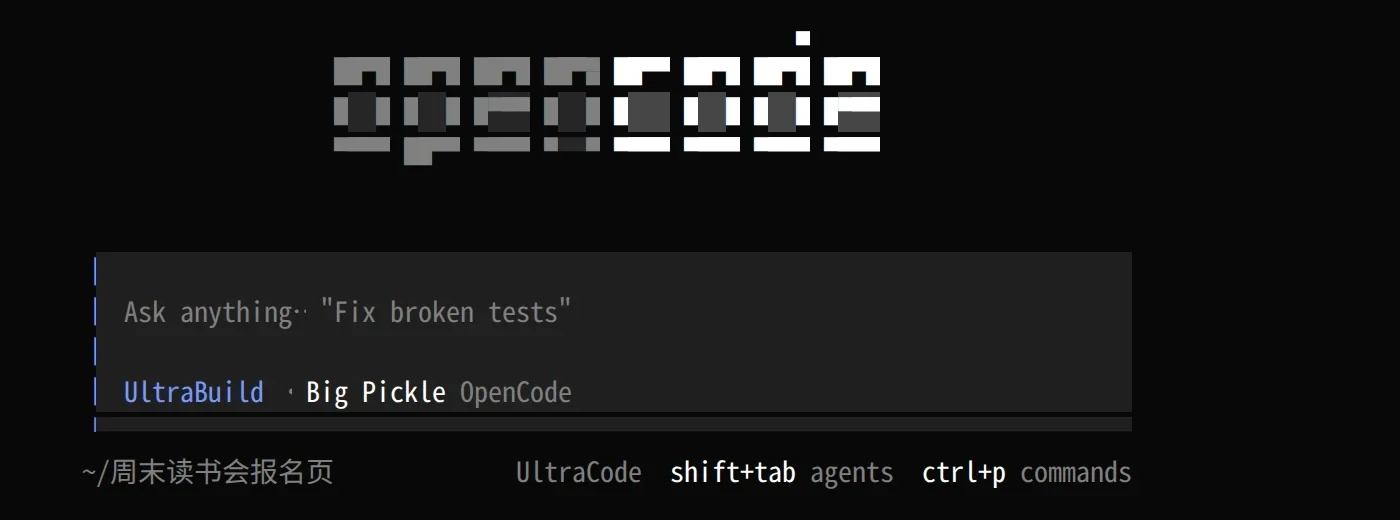
- Talk here, exactly like a chat app
- The bottom shows the folder, UltraCode, and shortcuts
What you’ll see: A prompt in the middle, your current folder name along the bottom, and the UltraCode label to the right. The blinking cursor is simply waiting for you to speak.
02 State the outcome in one sentence
Section titled “02 State the outcome in one sentence”The important half is the ending: say which files may change and which must stay untouched. That is what makes it safe to let it act.
Send this sentence
Turn the meeting notes in this folder into a clear action list: group by owner, say what to do and when it is due, and save it as a new file without deleting the originals.What you’ll see: It looks through the folder first, tells you how it plans to organise things, and only then starts working.
03 When you need one more action, open the slash menu
Section titled “03 When you need one more action, open the slash menu”See ctrl+p commands at the bottom? That is the command menu. You never have to memorise a command; open the menu and pick.
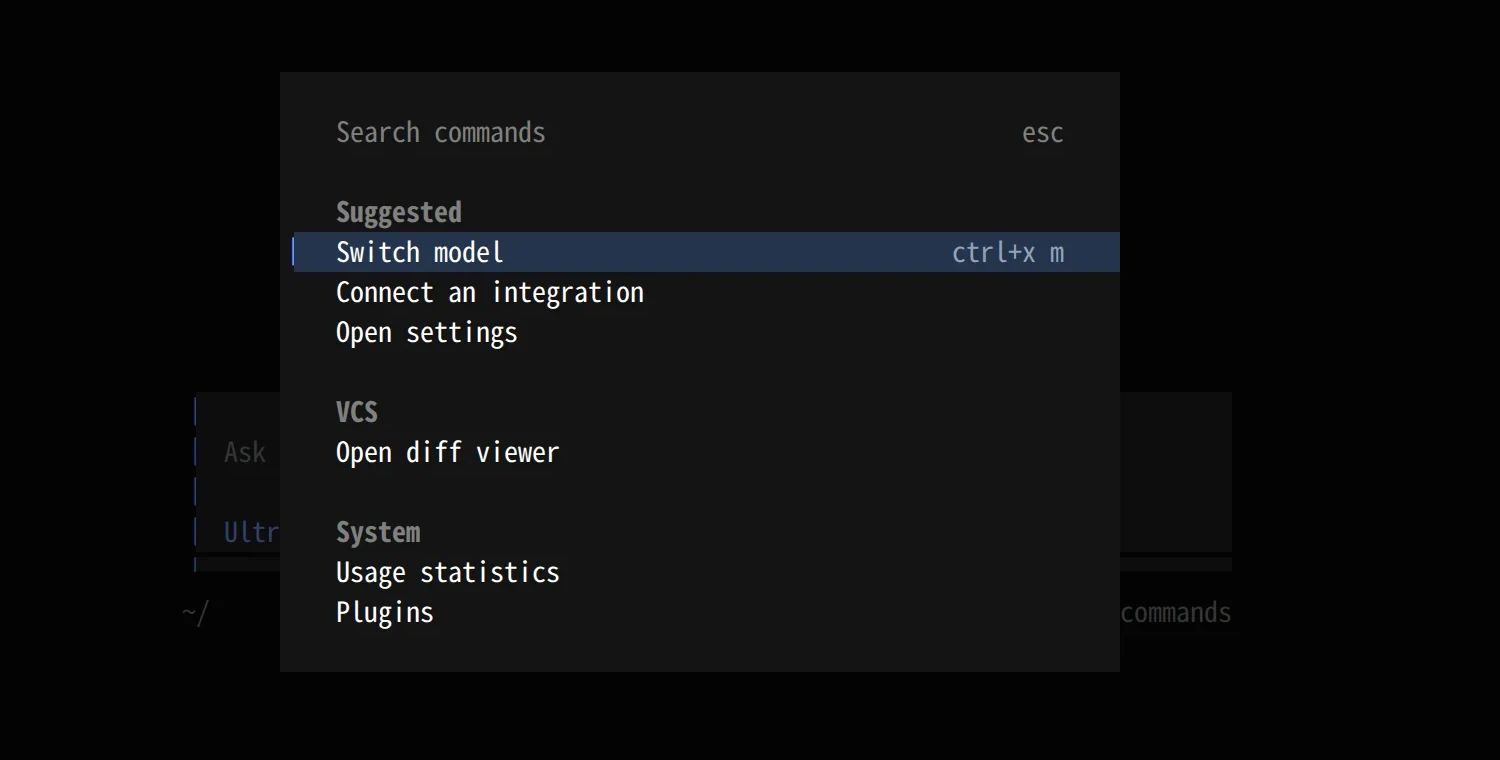
- The clickable command menu
What you’ll see: A list of clickable commands appears in the middle — switch model, open settings, and so on. Move with the arrow keys and press Enter.
04 Keep talking instead of starting over
Section titled “04 Keep talking instead of starting over”Terminal mode and the desktop app are the same capability in a different window. Use whichever feels natural.
Adjust it like this
Tighten the list: only what is still open this week, sorted by the nearest due date.What you’ll see: Only this list changes; the notes it already organised are not rebuilt from scratch.
Want it to check a real interface next? Continue with Lock a blueprint, then verify the page.