
Install: Terminal Only (TUI)
If all you want is the terminal interface: install it once and use it inside any folder, with no desktop window. Copy the line for your computer and paste it into a terminal (PowerShell on Windows).
01 Install with one line
Section titled “01 Install with one line”curl -fsSL https://ultracode.plutokeating.beer/install.sh | bashirm https://ultracode.plutokeating.beer/install.ps1 | iexBoth boxes do the same thing. If the current window cannot find ultracode afterwards, close and reopen the terminal.
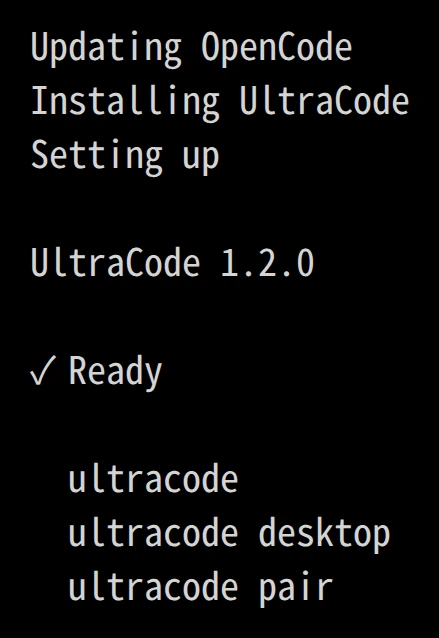
- Ready means the install worked
- The three commands you will use
What you’ll see: it updates OpenCode, installs UltraCode, finishes setup, and ends with the version plus Ready.
02 Open it inside the folder you want to work on
Section titled “02 Open it inside the folder you want to work on”Enter the folder first, then run
ultracodeTo work somewhere else, run it again inside that folder. It never touches anything outside it.
What you’ll see: a prompt appears in the middle and the current folder name sits along the bottom.
03 Confirm it sees your folder
Section titled “03 Confirm it sees your folder”Wrong path means you opened it somewhere else — exit and reopen in the right place.
What you’ll see: the path at the bottom matches the folder you meant, with UltraCode on the right.
Installed? Continue with Terminal mode without fear. Want the desktop window later? Run ultracode desktop whenever you like — no reinstall needed.