
Connect: Phone and Browser
Nothing needs to be installed on the phone: it borrows the workbench on your computer.
01 Make sure UltraCode is installed on the computer
Section titled “01 Make sure UltraCode is installed on the computer”Type this in the computer terminal
ultracode pairIf UltraCode is not installed on this computer yet, do the terminal + desktop install first, then come back.
What you’ll see: one link appears that you can open directly. It stays valid for a few minutes only.
02 Send the link to your phone and open it
Section titled “02 Send the link to your phone and open it”A chat app, a note, or email to yourself all work; some terminals also show a QR code you can scan.
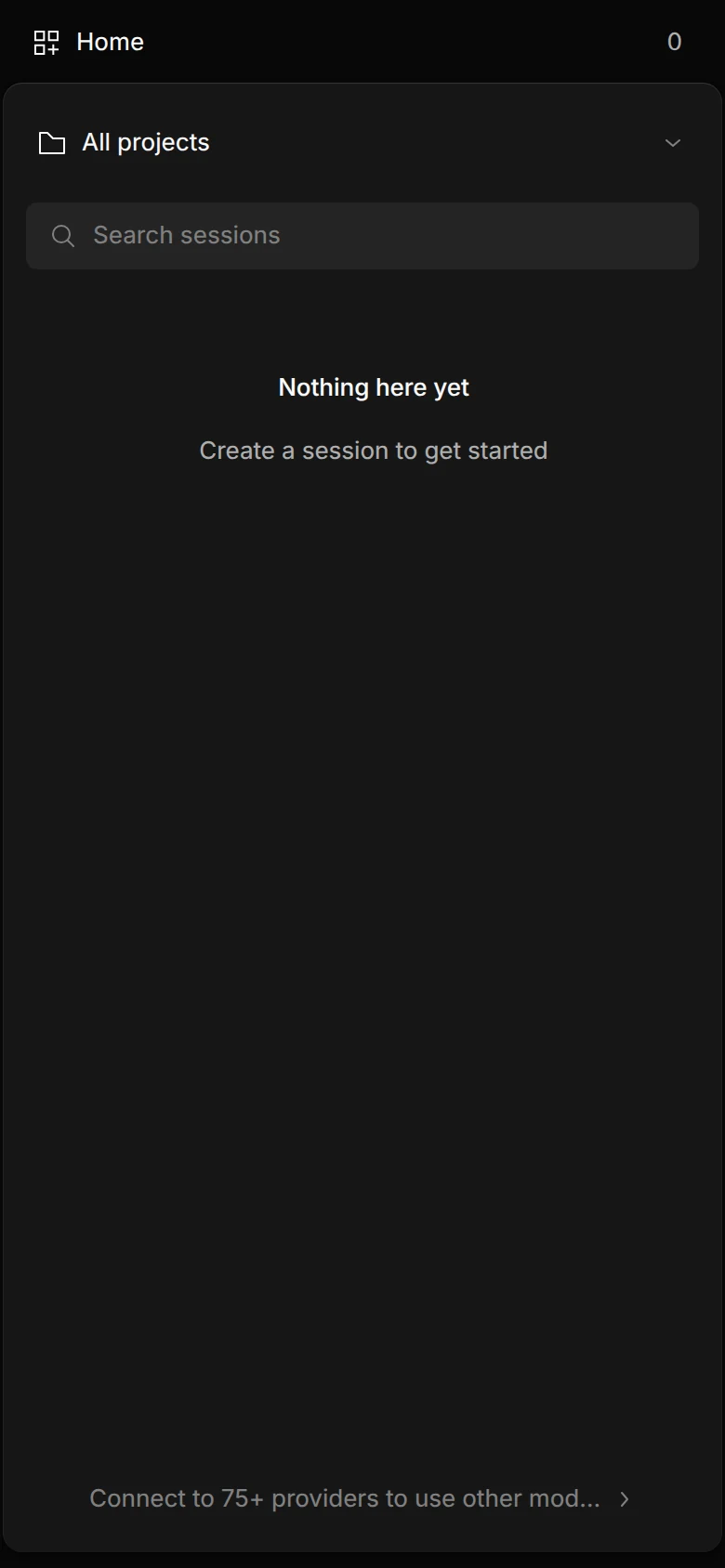
- The same interface on your phone
What you’ll see: the same interface in your phone browser, with the same project list as the computer.
03 Tap, interrupt, and continue on the phone
Section titled “03 Tap, interrupt, and continue on the phone”Commands work in the phone composer too
/directionThe other switch is /approvals, which controls whether it asks before running an action. Both stay in sync between computer and phone.
What you’ll see: the questioning mode switches immediately and the computer display follows.
Connected? Continue with Phone remote control.