
Power Trick 1: Lock a Blueprint, Then Verify the Page
The first two lessons covered how to start. This one is about how to avoid wasted work.
Three moves: agree on the plan, build it, then make it verify itself.
01 Switch to the plan-only role first
Section titled “01 Switch to the plan-only role first”Press Shift + Tab to switch. The most expensive mistake is starting to edit before the approach is settled — this step prevents exactly that.
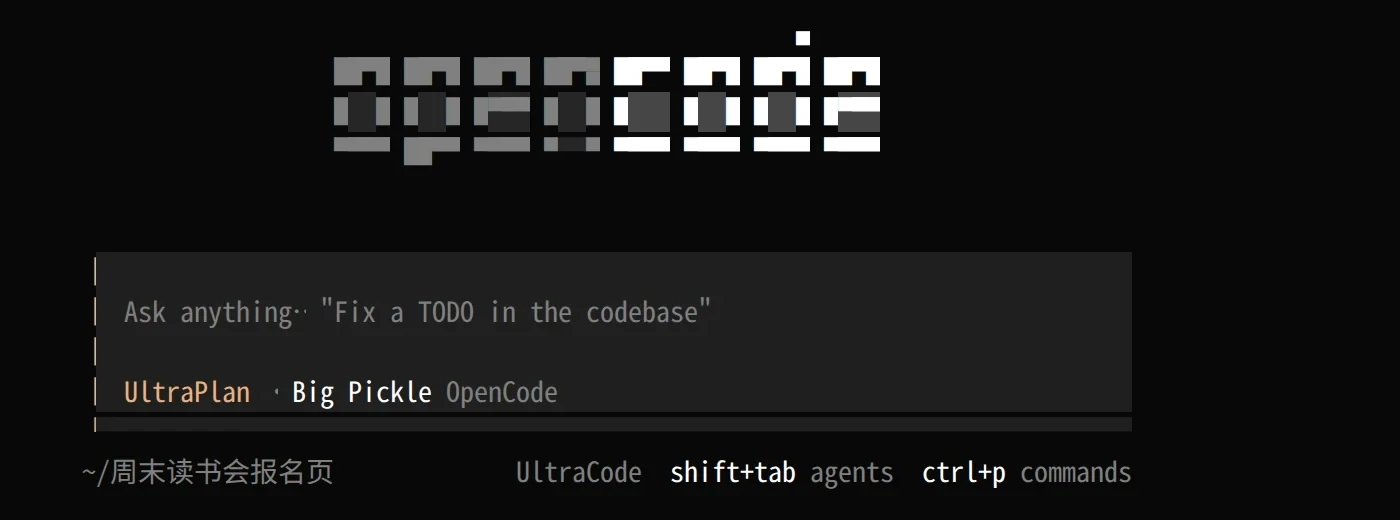
- UltraPlan here means read-only planning
What you’ll see: The role at the bottom changes from UltraBuild to UltraPlan. In that role it only reads and writes plans; your files stay untouched.
02 Have it spell out risks and trade-offs
Section titled “02 Have it spell out risks and trade-offs”The output here is not code; it is the standard you both agreed on. Everything later is judged against it.
Send this sentence
Do not write code yet. Tell me how many steps this sign-up page needs, how each step will be verified, and where it is easy to get wrong. List the open questions for me.What you’ll see: A step-by-step plan with acceptance checks, plus the questions that genuinely need your decision.
03 Approve it, then switch back and build
Section titled “03 Approve it, then switch back and build”Keep refining while you are not satisfied. Once you are, switching back makes it follow the plan instead of improvising.
What you’ll see: The role returns to UltraBuild and it implements the agreed plan step by step.
04 Let it click through the real page
Section titled “04 Let it click through the real page”Self-checking is where quality quietly slips, so what you want here is someone else verifying. That is the default way UltraCode works.
Ask for verification and an independent review
When it is built, open a real browser and click through both the desktop and phone layouts: buttons work, nothing overflows, no console errors. Then have an independent reviewer check it and fix anything it finds.What you’ll see: It actually operates the page and takes screenshots, fixing what it finds; then a separate reviewer role returns a pass or fail verdict.
The last lesson is about long tasks: Autopilot, next-day resume, and pairing fast and deep models.